Personal fork of microsoft/terminal

Windows Terminal, with more in it.

Mullion is a fork of Microsoft's Windows Terminal that evolves on its own terms. Script it from outside the process, get back what your panes were running after a restart, and have links, previews and windows behave the way you'd expect.

  • MIT licensed, like upstream
  • Built and tested in CI on every push
  • Upstream fixes merged in
A Mullion window with two tabs. A script connected to the control pipe has pinged the terminal and listed both panes, with the program and title of each, without simulating a keystroke.
A script listing every pane over the control pipe: no simulated keystrokes, and no window needed focus.
Highlights

The parts worth switching for

Automation

Drive it from outside the process

Every window opens a local pipe another program can talk to: ask what tabs and panes exist, read back exactly what one of them printed, or type into a specific pane. No simulated keystrokes, no guessing which window is focused. Microsoft looked at this exact idea twice and passed on it; their own automation surface can't reach a pane running inside WSL.

How the control pipe works
# \\.\pipe\wt-control-<pid>, one JSON object per line
→ {"op":"list-panes","reason":"find my build pane",
   "caller":"deploy.ps1 (pid 4242)"}
→ {"op":"capture-pane","pane":"1.0.0","lines":20}
→ {"op":"send-input","pane":"1.1.0","text":"git status",
   "requireContains":"PS C:\\"}
← {"ok":false,"error":"needle-gone"}
  # the prompt moved: nothing was written
The pipe names the pane, so a write never lands in whichever window happens to have focus.
Session restore

Bring back what was actually running

Reopening the terminal puts back the programs the panes were running, not just the shells. A coding agent returns to the same conversation; tmux, screen, zellij, herdr and shefrd reattach to the session their server is still holding. Panes that resume nothing repaint their saved scrollback, so a crash costs you the process, not the history.

See it come back
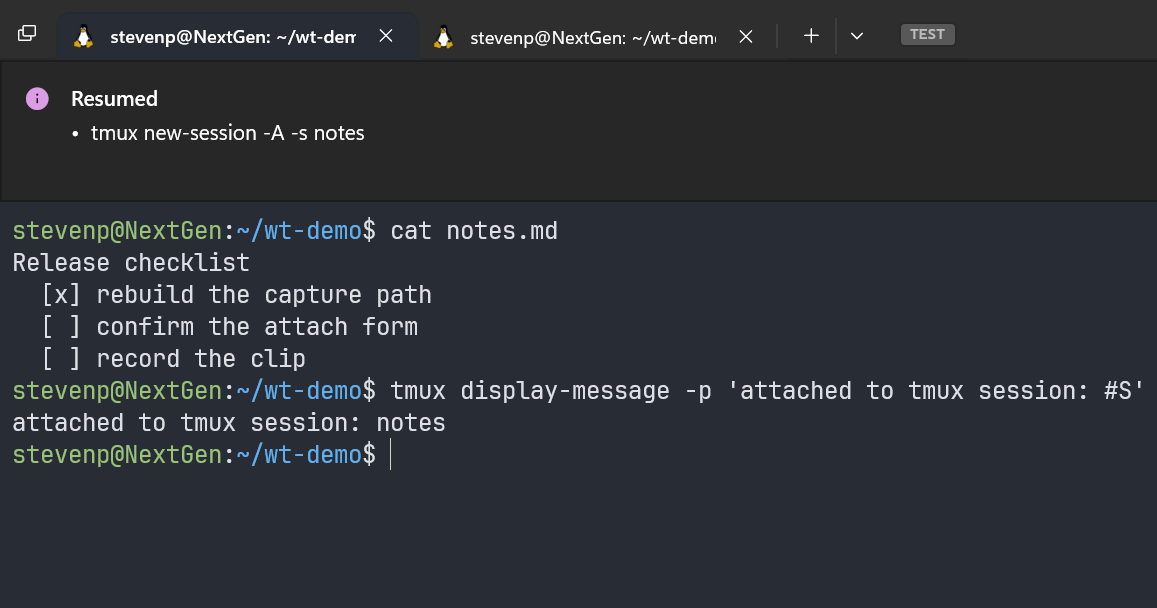
After a restart, a notice in the terminal names the tmux session that was resumed, using its attach command.
Links

Links that behave like you'd expect

Click a link without holding Ctrl, even inside tmux. Hover it and a card says what a click will do and where it really goes, with Open, Copy and Show in Explorer buttons, landing wherever there's room instead of running off the window's edge. A WSL file link opens the real file, not an error.

All link features
The link card over a WSL file link: the URL, a hint that a click follows it, the Windows path it resolves to, and Open, Copy link, Copy path and Show in Explorer buttons.
What it adds

Everything upstream doesn't have

Grouped the way you'd go looking for it. Each group links to the documented features behind it.

Browse the full catalogue

Links that do something

  • Paths are links: Windows, UNC and POSIX paths, resolved in the right WSL distribution.
  • Click without Ctrl, even inside tmux and other mouse-mode apps.
  • A link card with actions, Markdown, and file previews.
  • Integrations for GitHub, Jira and Slack, plus your own regex rules.
Link features

Tabs, windows and panes

  • Tab strip on any edge, with tab numbers and per-window overrides.
  • Each window reopens where it was, or docks to a screen edge.
  • Pane title bars with draggable dividers.
  • Light and dark colour schemes in pairs that follow the OS.
UI & theming features

Coming back to where you were

  • Session restore that resumes work: agents and multiplexers come back attached.
  • Pane contents saved on a clock, not only at exit.
  • A notice names exactly what was brought back.
Session restore

Scriptable from outside

  • Control pipe: list panes, capture their text, send input, focus one.
  • Restricted to the current user, and can be switched off.
  • Activity log of what the Terminal started and was handed.
Automation features

A Settings UI that knows what changed

  • New pages: Link Tooltip, Integrations, Session Restore, Activity, Documentation.
  • Hover Save or Discard to see exactly what would change.
  • Fork marks on every setting this fork adds.
Settings UI features

A live build and a throwaway one

  • Two installs side by side: one you live in, one that's safe to break.
  • Updates are fetched in the background; the live one changes only when you say so.
  • A badge always says which build and commit is running.
Deploy features
How it's run

A fork on its own terms

Relationship to upstream

Features land here because they belong in this terminal, whether or not microsoft/terminal would ever take them. Upstream is merged in, never rebased onto, for its bug and security fixes, and its issues and pull requests are read before anything here is built.

Nothing goes back: conflicts resolve in favour of this fork's behaviour, and the divergence is the point. The name is the upright bar between window panes.

Two slots, one machine

SlotWhat it is
Dev muldThe one you live in. It changes only when you press promote inside it.
Test multDisposable. Refreshed on demand to verify a build in a window of its own.

Every push to main builds, tests and packages both in CI; a background poller stages the newest build.

Mullion for Windows

Download the portable x64 build, extract the entire ZIP into a writable folder, and open mullion.exe. Keep the included .portable file: settings stay in that folder.

This portable build needs no MSIX registration or Developer Mode. It is a portable ZIP, not a signed MSIX installer. Windows 10 version 2004 or later is required.